Debian 13 NVIDIA Drivers Install Guide [Wayland / X11] [595.58.03 / 580.142]
Table of Contents

This is guide, howto install NVIDIA proprietary drivers (manually using .run files) on Debian 13 and disable Nouveau driver. This guide works with GeForce 700/800/900/10/20/30/40/50 series cards.
This guide works with UEFI Secure Boot disabled or enabled. If you keep Secure Boot enabled, follow this step-by-step module signing guide:
Debian 13 Secure Boot: Howto sign NVIDIA kernel modules (DKMS + .run installer)
- GeForce RTX 50 series cards works with 595.xx, 590.xx, 580.xx NVIDIA drivers, (RTX 5090 D, RTX 5090, RTX 5080, RTX 5070 Ti, RTX 5070)
- GeForce RTX 40 series cards works with 595.xx, 590.xx, 580.xx NVIDIA drivers, (RTX 4090, RTX 4080, RTX 4070 Ti, RTX 4070, RTX 4060 Ti, RTX 4060)
- GeForce RTX 30 series cards works with 595.xx, 590.xx, 580.xx NVIDIA drivers, (RTX 3090, RTX 3080 and RTX 3070, RTX 3060, RTX 3060 Ti)
- GeForce RTX 20 series cards works with 595.xx, 590.xx, 580.xx NVIDIA drivers (RTX 2080 Ti, RTX 2080, RTX 2070 Ti, RTX 2070, RTX 2060)
- GeForce 16 Series cards works still with 595.xx, 590.xx and 580.xx NVIDIA drivers (GeForce GTX 1660 SUPER, GeForce GTX 1650 SUPER, GeForce GTX 1660 Ti, GeForce GTX 1660, GeForce GTX 1650, GeForce GTX 1630)
- GeForce GT/GTX 700/800/900/10 series cards works with 580.xx NVIDIA drivers (GTX 1080 Ti, GTX 1080, GTX 1070, GTX 1060, GTX 750 Ti …)
- Note GTX 10 series: NVIDIA GTX 10 series cards do not work with 595.xx or 590.xx drivers, use 580.xx.
Check video version of guide. NVIDIA drivers installation with secure boot enabled on Debian 13:
Support inttf:

You can easily install / change / test / run:
- NVIDIA New Feature Branch (NFB) drivers
- NVIDIA Long Lived Branch (LLB) drivers
- NVIDIA Short Lived Branch (SLB) drivers
- NVIDIA BETA drivers
- Install NVIDIA drivers with custom patches
- Just stay in some particular NVIDIA version
This guide uses NVIDIA drivers directly from NVIDIA site and dkms to help on kernel updates. I have used this method on Fedora, Debian, Ubuntu and Linux Mint, etc. several years and it’s working OK. Here is updated version of guide for Debian 13 users (this might work directly with Debian 12, but it’s not currently tested).
This is an old school (and bit ugly) method to install NVIDIA drivers “manually”. I have tested this guide with 580.xx, 590.xx, 595.xx drivers/cards, both should work Wayland and X11. This guide enables Wayland directly, but also X11 should work if needed.
With DKMS, you can just update your kernel and your NVIDIA drivers are compiled automatically. If you want to update/upgrade NVIDIA drivers, then you have to download new installer package from NVIDIA site, boot runlevel 3 using custom menu entry, run installer successfully and reboot back to runlevel 5.
Let me know, if you have any problems?
Or if you succeed, you could post output of following commands:
nvidia-installer -v |grep version
uname -a
lspci |grep -E "VGA|3D"
Backup first important files before you start installation. And this is of course at your own risk, because graphic cards, components and monitors are different and some combinations might cause totally unexpected results.
1. Before NVIDIA drivers installation⌗
1.1 Check is your NVIDIA card supported⌗
lspci |grep -E "VGA|3D"
## Example outputs ##
01:00.0 VGA compatible controller: NVIDIA Corporation TU106 [GeForce RTX 2060 Rev. A] (rev a1)
List of Supported NVIDIA GPU Products, check best driver for your card. If you see multiple VGA controllers, then check next step and sometimes you might see example Intel VGA controller which have nothing to do with Optimus, normally you can go to BIOS and simply disable it.
1.2 NVIDIA Optimus Technology⌗
If your lspci |grep -E “VGA|3D” output looks like following:
00:02.0 VGA compatible controller: Intel Corporation 2n Generation Core Processor Family Integrated Graphics Controller (rev 09)
01:00.0 VGA compatible controller: NVIDIA Corporation GF106 [GeForce GT 555M SDDR3] (rev a1)
Or
00:02.0 VGA compatible controller: Intel Corporation 4th Gen Core Processor Integrated Graphics Controller (rev 06)
01:00.0 3D controller: NVIDIA Corporation GK107M [GeForce GT 750M] (rev a1)
Or you know that your computer have NVIDIA Optimus Technology, and it is impossible to turn Intel Graphics / NVIDIA Optimus off in the BIOS then this guide might not work for you and it’s not tested. You should read this NVIDIA Optimus page first and maybe check Bumblebee Project or NVIDIA XRun Project.
1.3 Disable UEFI Secure Boot or Check Howto Sign NVIDIA Kernel Module⌗
Check is UEFI Secure Boot Enabled or Disabled⌗
mokutil --sb-state
This guide works with UEFI Secure Boot disabled or enabled.
- If you prefer the simple path, disable Secure Boot.
- If you want to keep Secure Boot enabled, you must sign the NVIDIA kernel modules (see NVIDIA module signing documentation). Follow this step-by-step module signing guide:
Debian 13 Secure Boot: Howto sign NVIDIA kernel modules (DKMS + .run installer)
2. Install NVIDIA proprietary drivers on Debian 13 and disable the nouveau driver⌗
2.1 Download NVIDIA Installer Package⌗
Go to http://www.nvidia.com/Download/Find.aspx?lang=en-us and find latest version of installer package. When you use browser this is normally downloaded /home/<username>/Downloads/NVIDIA-Linux-xxxx.run location.
Tested versions with Debian 13 (Trixie) 6.12+ kernels:⌗
| Debian 13 |
|---|
| 595.58.03 (Tue Mar 24, 2026) |
| 590.48.01 (Thu Dec 18, 2025) |
| 580.142 (Tue Mar 10, 2026) |
2.2 Make NVIDIA installer executable⌗
chmod +x /path/to/NVIDIA-Linux-*.run
2.3 Change root user⌗
su -
## OR ##
sudo -i
2.4 Make sure that you system is up-to-date and you are running latest kernel⌗
apt update
Make sure that you don’t have any NVIDIA driver package(s) installed
List packages:
dpkg -l nvidia* |grep ii |awk '{print $2}'
Remove installed NVIDIA packages if needed:
apt remove $(dpkg -l nvidia* |grep ii |awk '{print $2}')
apt reinstall xserver-xorg-video-nouveau
After update and/or NVIDIA drivers remove reboot your system and boot using latest kernel and nouveau:
reboot
This is important before the next steps.
2.5 Install needed dependencies⌗
Packages from distro repos
apt install linux-headers-$(uname -r) gcc make acpid dkms pkg-config libglvnd-core-dev libglvnd0 libglvnd-dev libc-dev xwayland libxcb1 libnvidia-egl-wayland1
2.6 Add GRUB Entry for NVIDIA Install / Update⌗
This helps with installation and updates because the nvidia-drm.fbdev=1 parameter (may) cause a black screen during installation or updates.
Create /etc/grub.d/42_inttf_nvidia file
cat > /etc/grub.d/42_inttf_nvidia <<'EOF'
#!/bin/sh

. /etc/grub.d/10_linux >/dev/null 2>&1

# Get the first (latest) kernel from the list
for kernel_path in ${reverse_sorted_list}; do
    basename=$(basename "$kernel_path")
    dirname=$(dirname "$kernel_path")
    rel_dirname=$(make_system_path_relative_to_its_root "$dirname")
    version=$(echo "$basename" | sed -e "s,^[^0-9]*-,,g")

    # Find matching initrd
    initrd_real=""
    for i in "initrd.img-${version}" "initramfs-${version}.img" "initrd-${version}.gz"; do
        if [ -e "${dirname}/${i}" ]; then
            initrd_real="${i}"
            break
        fi
    done

    if [ -z "$initrd_real" ]; then
        echo "Warning: No initrd found for kernel ${version}. Skipping entry." >&2
        continue
    fi

    # Extract the first menuentry block to get both UUIDs
    first_entry=$(sed -n '/^menuentry /,/^}/p' /boot/grub/grub.cfg | head -20)
    search_uuid=$(echo "$first_entry" | grep -oP 'search --no-floppy --fs-uuid --set=root \K\S+' | head -1)
    root_uuid=$(echo "$first_entry" | grep -oP 'root=UUID=\K\S+(?:\s|$)' | head -1 | tr -d ' ')

    if [ -z "$search_uuid" ] || [ -z "$root_uuid" ]; then
        echo "Warning: Could not determine UUIDs from grub.cfg. Skipping entry." >&2
        continue
    fi

    # Generate the entry
    cat << GRUBEOF
menuentry 'Debian GNU/Linux NVIDIA Update' --class debian --class gnu-linux --class gnu --class os {
        load_video
        insmod gzio
        if [ x\$grub_platform = xxen ]; then insmod xzio; insmod lzopio; fi
        insmod part_gpt
        insmod ext2
        search --no-floppy --fs-uuid --set=root ${search_uuid}
        echo    'Loading Linux ${version} ...'
        linux   ${rel_dirname}/${basename} root=UUID=${root_uuid} ro ${GRUB_CMDLINE_LINUX} ${GRUB_CMDLINE_LINUX_DEFAULT} nvidia-drm.fbdev=0 3
        echo    'Loading initial ramdisk ...'
        initrd  ${rel_dirname}/${initrd_real}
}
GRUBEOF
    break
done
EOF
Make 42_inttf_nvidia file executable
chmod +x /etc/grub.d/42_inttf_nvidia
2.7 Disable nouveau and add NVIDIA options⌗
2.7.1 Create or edit /etc/modprobe.d/blacklist.conf⌗
Append ‘blacklist nouveau’
echo "blacklist nouveau" >> /etc/modprobe.d/blacklist.conf
2.7.2 Create /etc/modprobe.d/nvidia.conf⌗
Add following content to /etc/modprobe.d/nvidia.conf
echo "options nvidia NVreg_PreserveVideoMemoryAllocations=1" >> /etc/modprobe.d/nvidia.conf

echo "options nvidia-drm modeset=1 fbdev=1" >> /etc/modprobe.d/nvidia.conf
2.7.3 Update grub2 conf⌗
## BIOS and UEFI ##
update-grub2
2.7.4 Generate initramfs⌗
update-initramfs -c -k $(uname -r)
2.8 Reboot to runlevel 3⌗
Note: You don’t have Desktop/GUI on runlevel 3. Make sure that you have some access to end of guide. (Open it on mobile browser, Print it, use lynx/links/w3m, save it to text file).
Now your new GRUB boot entry should work, so reboot and select “Debian GNU/Linux NVIDIA Update” from grub menu.
reboot
OR alternatively you can change the runlevel on GRUB2 adding one additional parameter. Quick guide howto change runlevel on GRUB2.
2.9 Install NVIDIA proprietary drivers for GeForce 700/800/900/10/20/30/40 series cards⌗
2.9.1 Log in as root user⌗
Or alternatively change root user
su -
## OR ##
sudo -i
2.9.2 Run NVIDIA Binary⌗
Following command executes driver install routine. Use full file name command if you have multiple binaries on same directory.
./NVIDIA-Linux-*.run
## OR full path / full file name ##
Downloads/NVIDIA-Linux-x86_64-595.58.03.run
Downloads/NVIDIA-Linux-x86_64-590.48.01.run
Downloads/NVIDIA-Linux-x86_64-580.142.run
Secure Boot users: If UEFI Secure Boot is enabled, then you must sign the NVIDIA kernel modules. Do key enrollment first (see Debian 13 Secure Boot: Howto sign NVIDIA kernel modules (DKMS + .run installer)), and then run installer with module signing options:
./NVIDIA-Linux-*.run \
    --module-signing-secret-key=/root/module-signing/MOK.priv \
    --module-signing-public-key=/root/module-signing/signing.x509
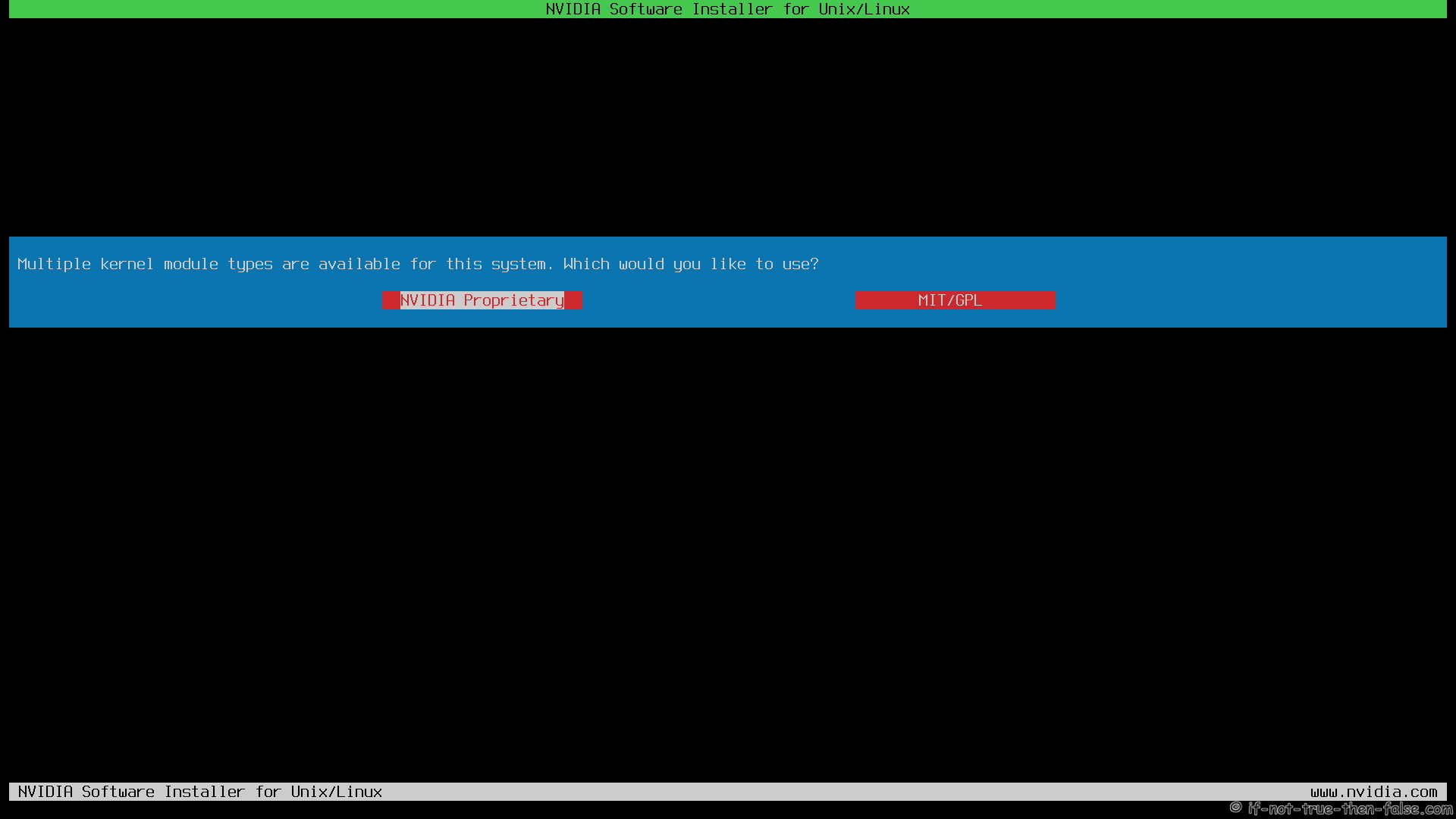
2.9.3 NVIDIA Installer Multiple kernel module types are available⌗
Select NVIDIA Propriatary
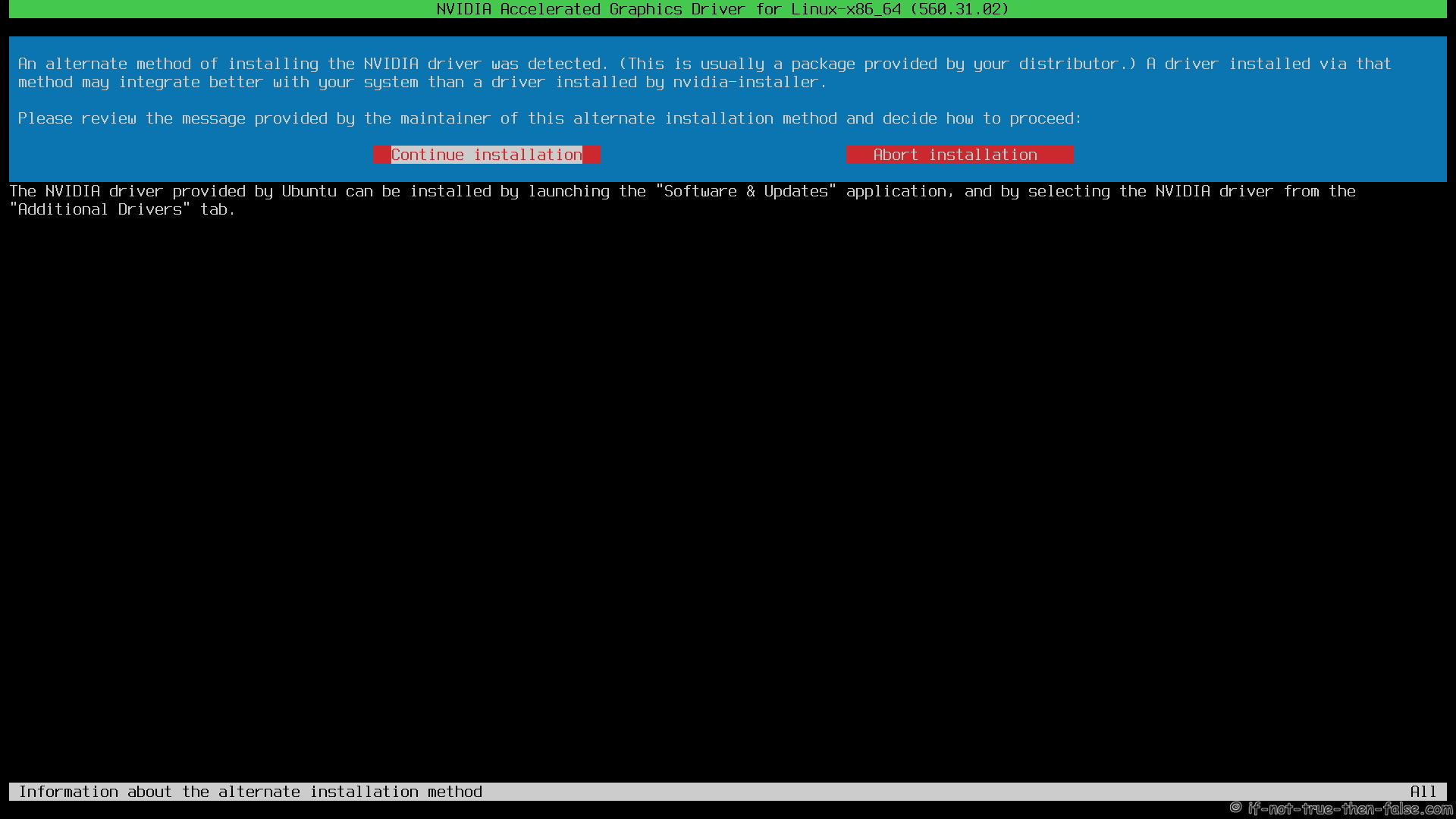
2.9.4 NVIDIA Installer An alternate method of installing the NVIDIA driver was detected⌗
Select Continue Installation
2.9.5 NVIDIA Installer Building kernel modules⌗
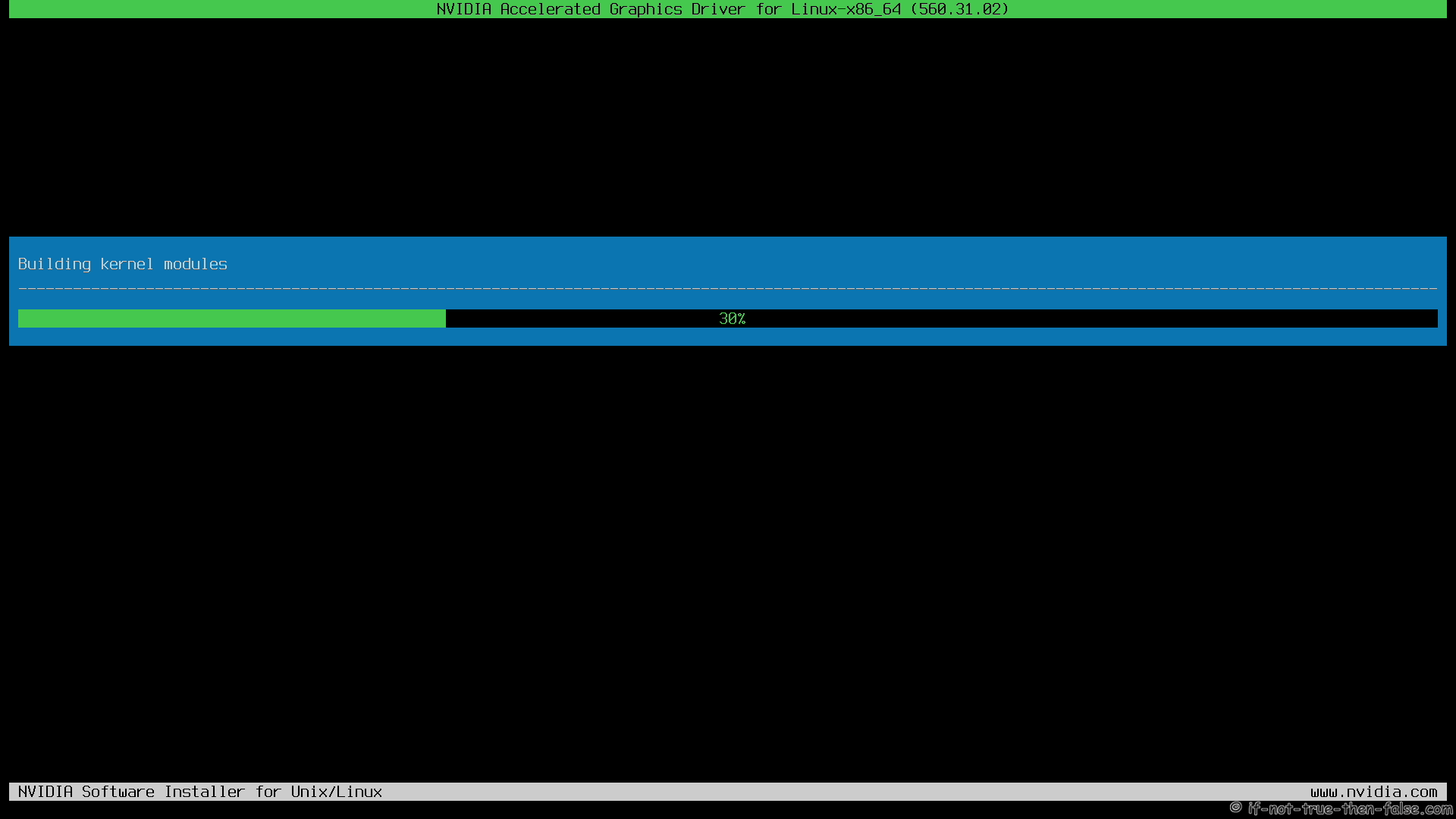
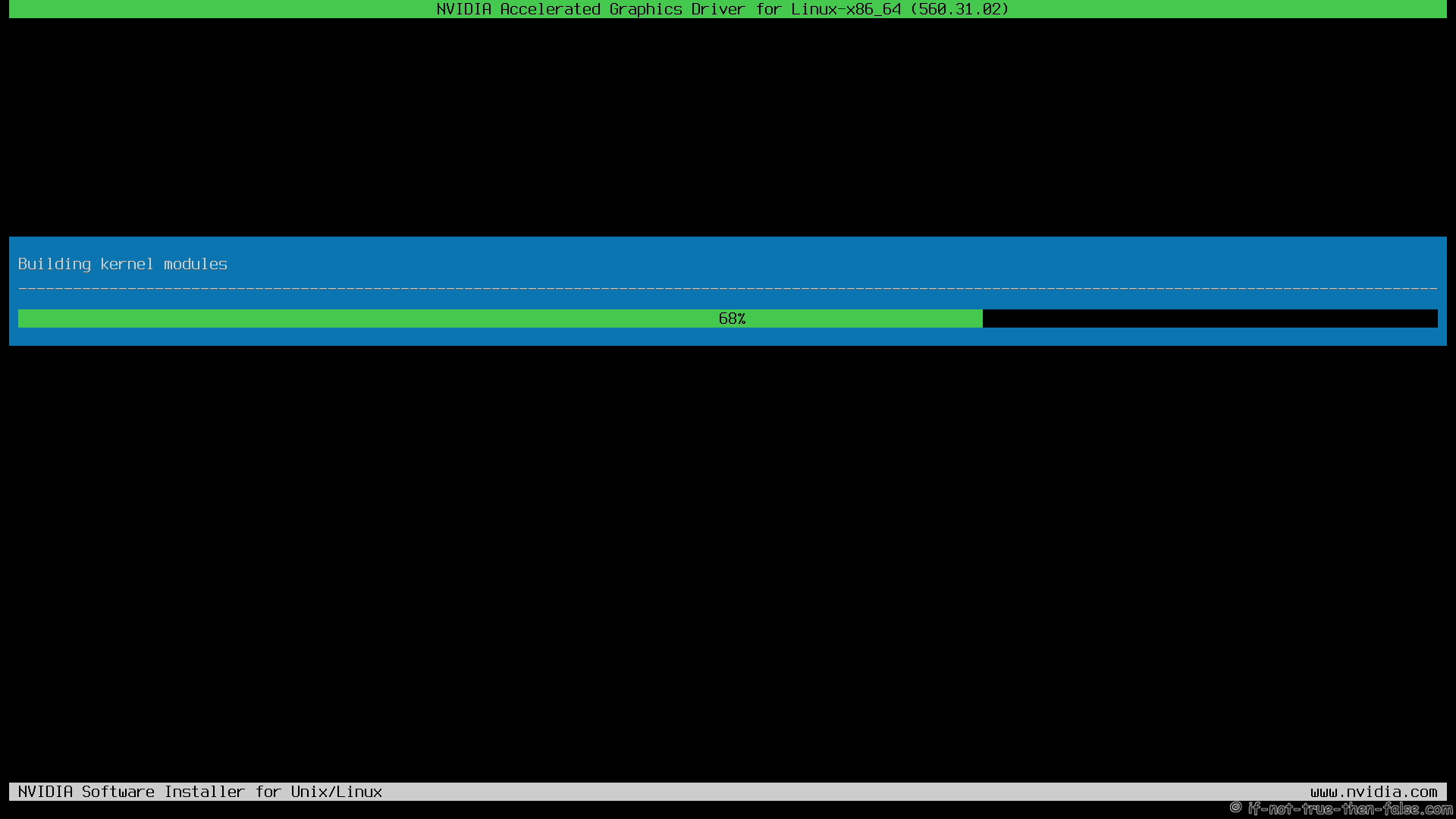
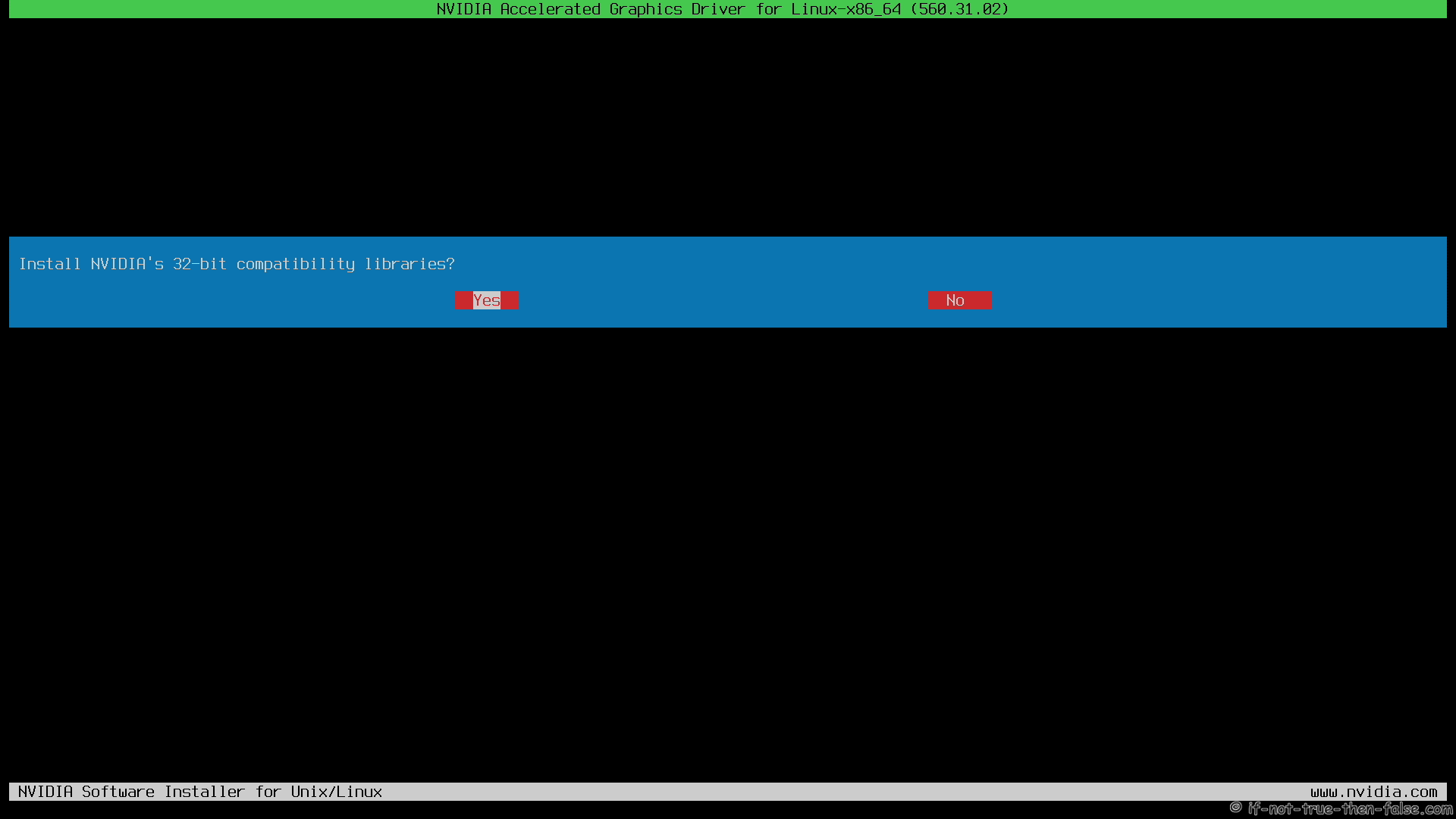
2.9.6 NVIDIA Installer 32-bit Compatibility Libraries⌗
Select Yes if you need 32-bit compatibility libraries.
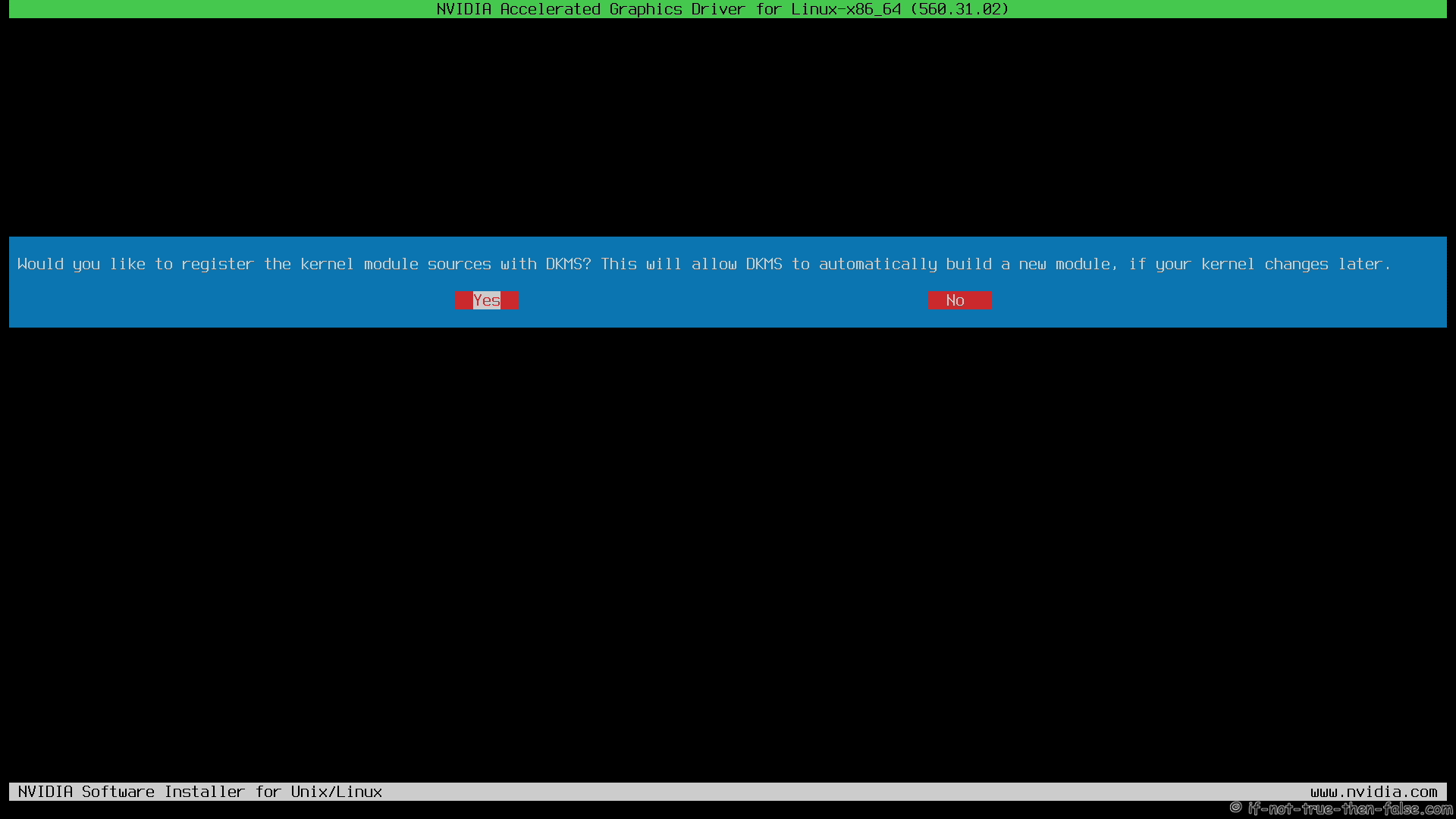
2.9.7 NVIDIA Installer register kernel module sources with DKMS⌗
Select Yes, dkms build your kernel modules automatically when you update kernel on your system.
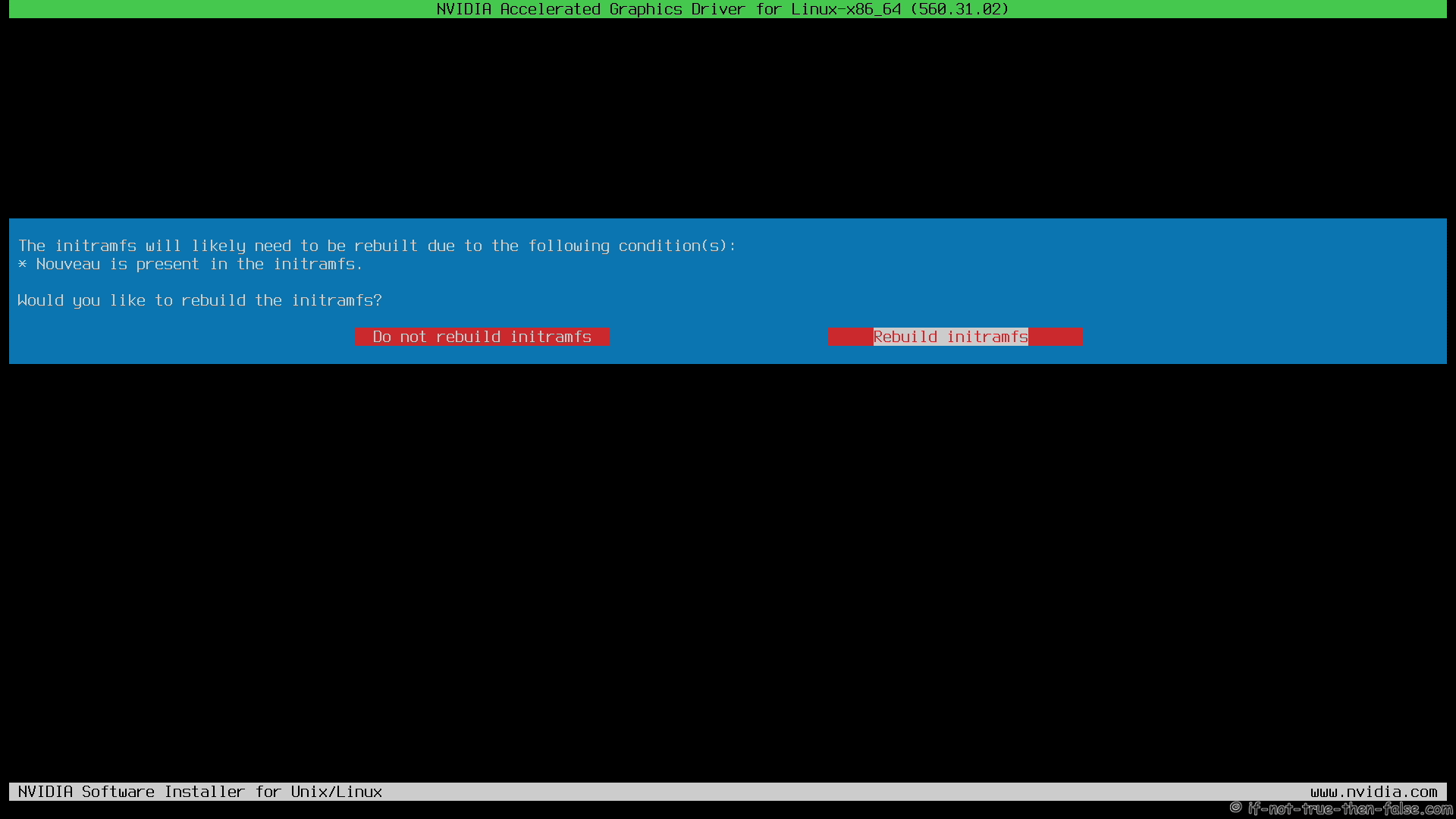
2.9.8 NVIDIA Installer rebuild initramfs⌗
Select Rebuild initramfs
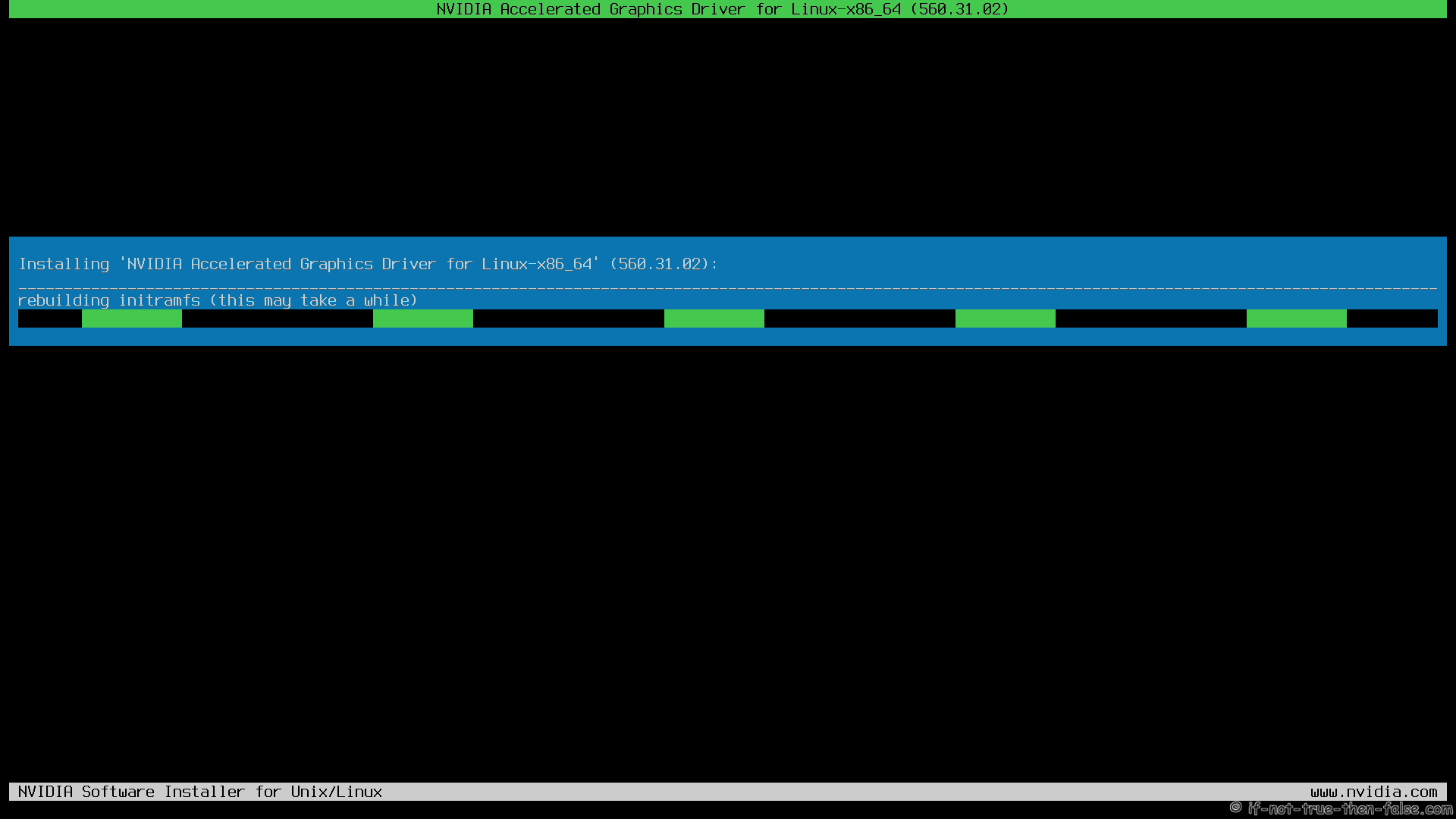
NVIDIA installer rebuilding initramfs
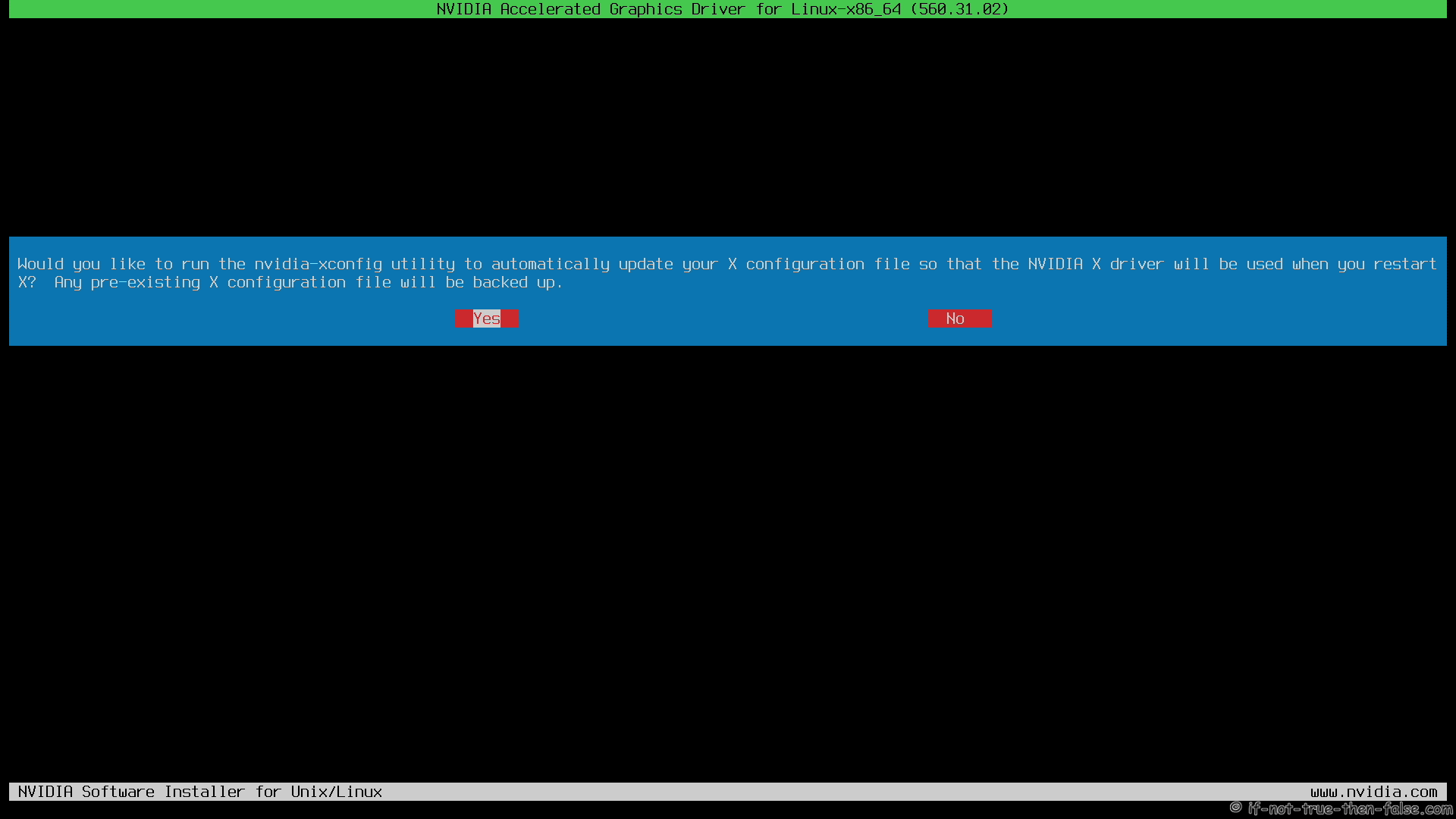
2.9.9 NVIDIA Installer run nvidia-xconfig utility and backup pre-existing X configuration⌗
Select Yes
2.9.10 NVIDIA Drivers Installation Complete⌗
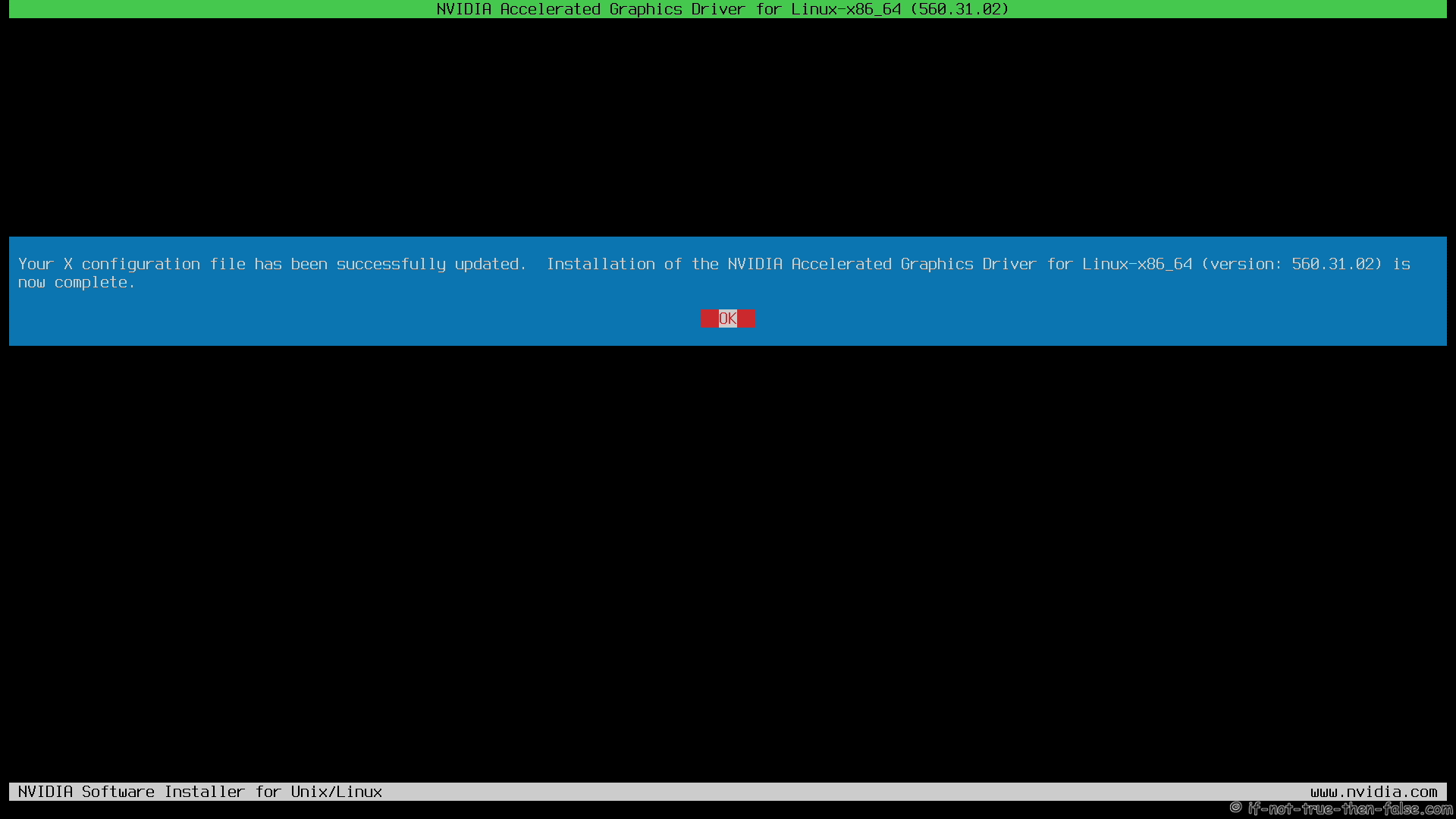
2.10 All Is Done and Then Reboot Back to Runlevel 5⌗
reboot
2.11 VDPAU/VAAPI support⌗
To enable video acceleration support for your player (Note: you need Geforce 8 or later).
apt install nvidia-vaapi-driver libva2 libva-wayland2 libva-x11-2 ffmpeg libavcodec61 mesa-va-drivers vainfo
2.12 Enable NVIDIA systemd services (nvidia-suspend, nvidia-hibernate and nvidia-resume)⌗
systemctl enable nvidia-suspend.service

systemctl enable nvidia-hibernate.service

systemctl enable nvidia-resume.service
2.13 Secure Boot users (DKMS module signing)⌗
If UEFI Secure Boot is enabled, you can sign the NVIDIA modules already during installation (see Secure Boot command options on step 2.9.2). After installation, you still need to make sure future DKMS rebuilds (kernel updates, driver updates) are signed and the signing key is enrolled.
Follow step 6.6 here:
Debian 13 Secure Boot: Sign NVIDIA Kernel Modules (DKMS + .run installer)
3. Some Screenshots Using Different Cards and Drivers⌗
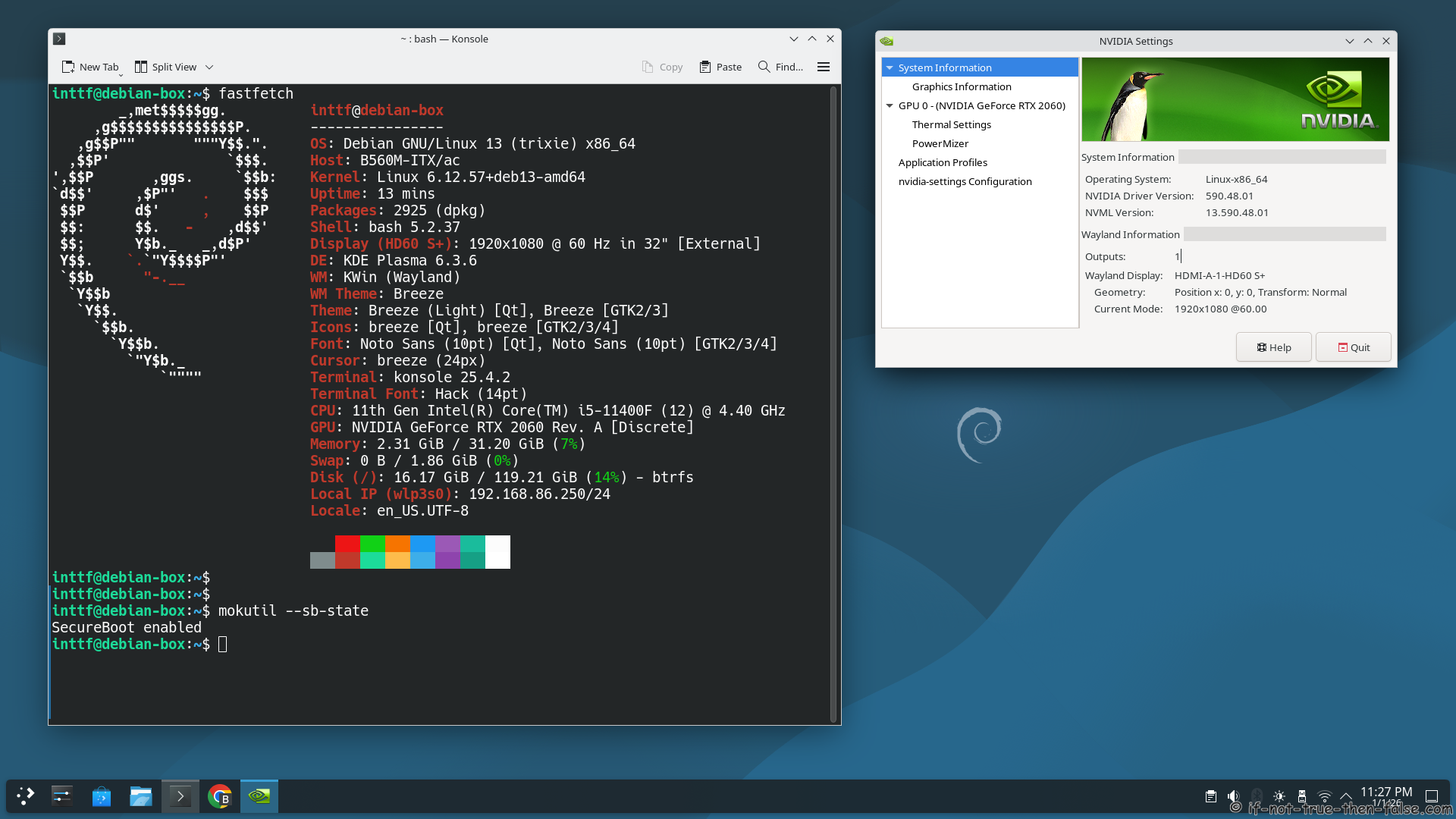
3.1 NVIDIA 590.48.01 Drivers on Debian 13 with Kernel 6.12 (Secure Boot enabled)⌗
Let me know, if you have problems?
If you see Black Screen after NVIDIA drivers install, then check following video:
Support inttf:
Or if you succeed, you could post output of following commands:
nvidia-installer -v |grep version
uname -a
lspci |grep -E "VGA|3D"